Posts

M365 Licensing

Image
 M365 is  a per user licensing option that includes  O365 Windows 10 Enterprise Enterprise Mobility + Security M365 is available in 2 options Microsoft 365 E3 & E5. Fetching M365. LICENSE Microsoft 365 Full USL Microsoft 365 Add On Microsoft 365 "From SA" USL Microsoft 365 Full USL New Enterprise Agreement/ New Enterprise Subscription customers who want to license the Enterprise Platform as cloud services on a per user basis. Existing Enterprise Agreement/Enterprise Agreement Subscription customers who: Are not licensed for office Professional Plus, CAL and windows 10 suits and want to license it as cloud services on per user license basis. want to license net new users for the Enterprise Platform as cloud services on per user basis. Orderable at Mid-term, Renewal or Anniversary. Microsoft 365 Add-On  This one is only applicable to existing Enterprise Agreement/Enterprise Agreement Subscription customers who fall under one of the below cases Those who are current...

JSON Formatting in Modern SharePoint lists/libraries.

Image
One of the most important feature in modern SharePoint lists and library is its ability to be customized by JSON formatting. There are two different methods to do so. 1. additionalRowClass 2. rowFormatter Below is the one liner defs for both these methods. additionalRowClass is used when you only wnat to concentrate on one column in the list or library. rowFormatter is used to customize the complete Row. And if you decide to act smart and use both of them together, any styling applied to additionalRowClass will be lost. Now we will use rowFormatter, and for it we will create elements using DIVs we will create a Main DIV and nest 3 DIVs inside it. Below is the complete JSON for it. We have also applied styling to the DIVs. {   "$schema": "https://developer.microsoft.com/json-schemas/sp/view-formatting.schema.json",   "hideSelection": true,   "hideColumnHeader": true,   "rowFormatter": {     "elmType": "div",     ...

Welcome Power Automate Desktop Flows.

Image
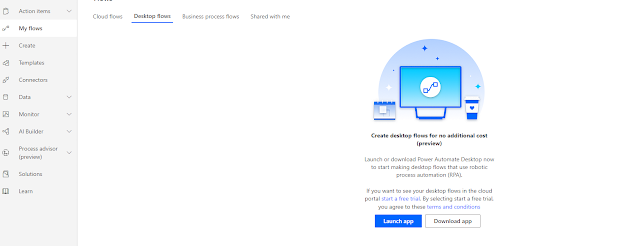
 Microsoft had a weak offering up till now in RPA. But then MS did what MS does. It bought Softomotive the owners of Win Automation. Now Win Automation had a well established RPA product with all the bells and whistles. Prior to it UI Flows were only limited to Selenium and windows recorder. Both of which had their drawbacks.  So to start with Power Automate Desktop you first need to install the Power Automate Desktop App, the on-premise data gateway is also to be installed. This gateway will provide the connectivity between the local desktop and cloud. MS documentation game has gone up. You can follow all the setup steps without fault here We can then call the Desktop flow from a Power Automate Flow. Simple and easy. But for the purpose we here will only be focusing on Desktop flows and its capabilities. So Once the Desktop flow is setup we open go to the Power Automate flows and click on Desktop flows. You need to click on Launch App and it opens the desktop flow studio. We ...

SharePoint Mail Merge with Documents, Templates, lists and Quick Parts in SPO using Power Automate

Image
The whole idea behind Mail merge is to create a documents based on a specific template. Now you can have multiple use cases for it. Like you may have multiple templates generating documents for the same person, or you may have same template generating documents for different persons. What you need in here is a SharePoint list and a SharePoint library. So let our List be something like this Now when you create your SharePoint library, you need to create similar columns in there too. For our case we will just be coping Project and Portfolio column. Document library is where we will be uploading our template. Also, we need to make the below changes in the library settings. Now what we need to do next is create a Template and upload it in library. Once all this is done, then we switch to Power Automate. For our test purpose we will trigger the flow on item creation or modification.  So first we will read the from the template. next action is to Create a file. After creating files we ne...

Teams : how to setup file permissioning.

This came as a surprise for me, but now makes complete sense. So even if its a short post it has to be posted.  All the files shared in a Team Chat are uploaded to OneDrive for Business of the person who uploads the file. This means even when you are in a Private chat with someone, he / she can go to Files tab and access all the other files uploaded by different people.  Each of the file uploaded is stored in the Microsoft Teams Chat Files folder in respective person's One drive for Business.  Of course MS gives you the option to remove or expand the permissions once the files are uploaded. That is perhaps the biggest reason why most places like Defense, Govt classified Departments, they are advised not to use teams or don't have teams for sharing documents. The way around that i have found out is to create document library in SharePoint. And then break the permission of this SharePoint library. Then upload the document in this document library while sharing with team mem...

Containers in Power Apps.

Image
We have all tried to build responsive apps, failed and then stuck to the same default layout. Microsoft now has introduced containers in Power Apps. With containers MS has also introduced few new control properties. These properties are dependent on the direction property. So what does that mean. It means now you can develop apps by inserting controls inside these containers and you don't have to worry about responsiveness. Consider these containers as responsive wrapper around your App. Before this i use to leverage power apps forms control to achieve this, setting the height and with to App.Height and App.Width. So lets set first the app settings set. First of all we need to turn off the below features. Now if you come inside the app you, lets  add a container to your screen. The most basic one is the one in which you add a screen and then add container as an input control. Immediately you will see we have a whole list of new Properties to play with. Property like Direction has t...

Send emails to a SharePoint group using Power Automate.

Image
 The limitation of Power Automate is that it can't send emails to a SharePoint Group. Now if you ask t why, as even SharePoint Designer based workflow could do that? The answer is simple MS doesn't send it as SharePoint Group aren't associated with an email address.  However, the community and great minds have come up with various solutions from hardcoding the emails in variable to using GetItems actions to store the users emails in a SharePoint action. But when I was stuck at this problem, I wanted to read users from SharePoint Groups. Another problem with Power Automate is that MS keeps updating it. So you may find a blogpost related to the problem you are at but now there may be an easier way to fix it as MS may have added a new feature or functionality. So the solution below is also a hybrid of multiple solutions that i looked into. Step 1: What we are doing in here is initializing a string variable, we have named it as SharePointGroup. Step 2: Use the Send an HTTP requ...