Posts

Creating a Unique ID from Power app before saving the item.
Image
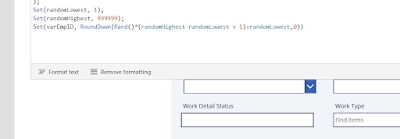
 Scenario: Creating a unique ID befoere saving the item in Power Apps. This is a very small snippet but it works well and even survive the cache issue in powerapps. Put in the code in the OnSelect property of the button Set(randomLowest,1); Set(randomHighest,9999999); Set(varID, RoundDown(Rand()*(randomHighest -randomLowest +1)+randomLowest,0)) Put the below code on the default code of the input text Text(varEmpID,"0000000") Simple and sweet.

Prevent overlapping of entered time by the user.

Image
      Usecase: User wants to clock in his claims, and for this he has to lock in his time period for work on that claim. The system should validate if this timeperiod has already been entered by him or not, and hence prevents him/her for entering overlapping timeperiod claims. Solution: I tried various approaches to begin with, like saving a list with 24 fields each representing one hour. And then when claim was punched in the flow was to update the time period for that claim. This was just a basic solution and was rigid. Also it could not handle claims if the timeperiod was in hours and minutes like 1hr 30 mins for a claim.  So i needed something which was more dynamic and flexible in the approach. Also, i am a firm believer of the fact, that if something is incorrect the best solution is to refrain user from entering it inside the system. That way, you dont have to deal with fixing with it later. Yup i know i am lazy. The below solution leverages collections. First...

Error 429- Rate limit is exceeded, Try again after 5 seconds.

The dynamic operation request to API 'sharepointonline' operation 'GetTable' failed with status code '429'. This may indicate invalid input parameters. Error response: { "statusCode": 429, "message": "Rate limit is exceeded. Try again in 22 seconds. Please see https://docs.microsoft.com/azure/logic-apps/handle-throttling-problems-429-errors for more details." } When you have too many API calls by the flow, the Power automate flow triggers this Error 429. But i have seen this error exception being thrown, even without say 600 API calls per connection per minute. When your list structure either has below use cases. 1. Multiple Update Item in the flow. 2. Calling other flows from the same flow. 3. Having branches in the flow, which are either creating or updating sharepoint list. Fix: There is no available fix for this apart form change in the design of the flows.  A user voiced was also raised for this but i see it as declined. https:...

Moving PowerApps Attachments to a SharePoint Library using Power Automate flow.

Image
  Use Case :  Move the attached files to a SharePoint library rather than saving them as a SharePoint list item attachment. Solution: A gain the simplest solution is to create a Power Automate flow which runs on items creation. Add the action "Get Attachments" This will take in Site Address, List Name and the ID of the recently created item. So the catch is to add this action just after the When an item is created or modified step. Then we need to add the Get Attachment Content action. This action is also straight forward, it again takes in your address list name, ID and a File Identifier. The File Identifier is nothing but the Id for the previous step. Also, as soon you add it, Apply to each will wrap it. Next step is to add Create file action. This is again straight forward, just provide the Address, Folder Path (basically the SharePoint library you wish to save your attachment.), File Name and the File content.  File content is the output of your previous step. And tha...

Bulk Ops in Power Apps

Image
Scenario: User wants bulk operations like status change to multiple items in Power Apps. The data for this is saved in SharePoint online lists or Data verse. So first thing first, let just design a simple app. Our app will have a gallery on the screen, this gallery will be linked to a SharePoint online list. Then we will add checkbox field in the gallery and also put in few labels to show data values of the respective list. Next we need to go to the OnCheck property of this checkbox control. Here what we will do is create a collection and add the selected item on it. Code for this will look something like this Collect(collectionName, ThisItem) Similarly, we will now proceed to the OnUncheck property code for it will look something like  Remove(collectionName,ThisItem). So what we are trying to do in here is that on check of the checkbox we are adding the selected item from the gallery into your collection, named as collectionName in above code. Next we add two button on the screen,...

A type named 'SP.Data.TestListListItem' could not be resolved by the model. When a model is available, each type name must resolve to a valid type.

Image
 Scenario: Trying to update a SharePoint list item using Send an HTTP request to Sharepoint action in Power Automate. This is an exception case, and i am writing it only to save someone's else time. Normally we can use Power Automate to GET, POST, PATCH & DELETE sharepoint list items. There are standard syntax, you need to follow to do it. The above title is an exception when your list name has a space when you create it. But when you delete that space later your Send HTTP request to SharePoint starts giving an error.  To be more clear i had a list called Master_Timesheet. And all i was doing was calling a flow from a Power App button and passing the listitem ID as parameter to the flow Something like this. FlowName.Run(ThisItem.ID) But to my surprise i was getting the below error. A type named 'SP.Data.Master_TimesheetListItem' could not be resolved by the model. When a model is available, each type name must resolve to a valid type. Initially i thought that i must hav...

How to reset a datepicker control in PowerApps?

Image
 Scenario: Simple reset a date picker control. Issue, you can't use normal Reset() function to reset the datepicker control. Solution: Simple create a variable Set(varResetCD, True) and use this variable to update the reset property of DatePicker control. The below Reset() won't work in case of datepicker control We need to create a variable and use it at the Reset property of the datepicker control. Also, if you still see some text inside your date field there are two other places you need to check in one is the datepicker control advanced properties. In the above screenshot all you need to do is clear InputTextPlaceholder. And then select the control and check the DefaultDate property of the date.  This should be set to Today(), you can also change it to something like below If(varResetCD,Blank(),Today()) What this does is sets the control to blank if the variable you have declared above is true. 

M365 Licensing

Image
 M365 is  a per user licensing option that includes  O365 Windows 10 Enterprise Enterprise Mobility + Security M365 is available in 2 options Microsoft 365 E3 & E5. Fetching M365. LICENSE Microsoft 365 Full USL Microsoft 365 Add On Microsoft 365 "From SA" USL Microsoft 365 Full USL New Enterprise Agreement/ New Enterprise Subscription customers who want to license the Enterprise Platform as cloud services on a per user basis. Existing Enterprise Agreement/Enterprise Agreement Subscription customers who: Are not licensed for office Professional Plus, CAL and windows 10 suits and want to license it as cloud services on per user license basis. want to license net new users for the Enterprise Platform as cloud services on per user basis. Orderable at Mid-term, Renewal or Anniversary. Microsoft 365 Add-On  This one is only applicable to existing Enterprise Agreement/Enterprise Agreement Subscription customers who fall under one of the below cases Those who are current...

JSON Formatting in Modern SharePoint lists/libraries.

Image
One of the most important feature in modern SharePoint lists and library is its ability to be customized by JSON formatting. There are two different methods to do so. 1. additionalRowClass 2. rowFormatter Below is the one liner defs for both these methods. additionalRowClass is used when you only wnat to concentrate on one column in the list or library. rowFormatter is used to customize the complete Row. And if you decide to act smart and use both of them together, any styling applied to additionalRowClass will be lost. Now we will use rowFormatter, and for it we will create elements using DIVs we will create a Main DIV and nest 3 DIVs inside it. Below is the complete JSON for it. We have also applied styling to the DIVs. {   "$schema": "https://developer.microsoft.com/json-schemas/sp/view-formatting.schema.json",   "hideSelection": true,   "hideColumnHeader": true,   "rowFormatter": {     "elmType": "div",     ...

Welcome Power Automate Desktop Flows.

Image
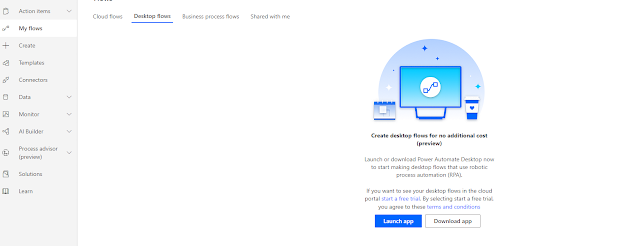
 Microsoft had a weak offering up till now in RPA. But then MS did what MS does. It bought Softomotive the owners of Win Automation. Now Win Automation had a well established RPA product with all the bells and whistles. Prior to it UI Flows were only limited to Selenium and windows recorder. Both of which had their drawbacks.  So to start with Power Automate Desktop you first need to install the Power Automate Desktop App, the on-premise data gateway is also to be installed. This gateway will provide the connectivity between the local desktop and cloud. MS documentation game has gone up. You can follow all the setup steps without fault here We can then call the Desktop flow from a Power Automate Flow. Simple and easy. But for the purpose we here will only be focusing on Desktop flows and its capabilities. So Once the Desktop flow is setup we open go to the Power Automate flows and click on Desktop flows. You need to click on Launch App and it opens the desktop flow studio. We ...

SharePoint Mail Merge with Documents, Templates, lists and Quick Parts in SPO using Power Automate

Image
The whole idea behind Mail merge is to create a documents based on a specific template. Now you can have multiple use cases for it. Like you may have multiple templates generating documents for the same person, or you may have same template generating documents for different persons. What you need in here is a SharePoint list and a SharePoint library. So let our List be something like this Now when you create your SharePoint library, you need to create similar columns in there too. For our case we will just be coping Project and Portfolio column. Document library is where we will be uploading our template. Also, we need to make the below changes in the library settings. Now what we need to do next is create a Template and upload it in library. Once all this is done, then we switch to Power Automate. For our test purpose we will trigger the flow on item creation or modification.  So first we will read the from the template. next action is to Create a file. After creating files we ne...

Teams : how to setup file permissioning.

This came as a surprise for me, but now makes complete sense. So even if its a short post it has to be posted.  All the files shared in a Team Chat are uploaded to OneDrive for Business of the person who uploads the file. This means even when you are in a Private chat with someone, he / she can go to Files tab and access all the other files uploaded by different people.  Each of the file uploaded is stored in the Microsoft Teams Chat Files folder in respective person's One drive for Business.  Of course MS gives you the option to remove or expand the permissions once the files are uploaded. That is perhaps the biggest reason why most places like Defense, Govt classified Departments, they are advised not to use teams or don't have teams for sharing documents. The way around that i have found out is to create document library in SharePoint. And then break the permission of this SharePoint library. Then upload the document in this document library while sharing with team mem...

Containers in Power Apps.

Image
We have all tried to build responsive apps, failed and then stuck to the same default layout. Microsoft now has introduced containers in Power Apps. With containers MS has also introduced few new control properties. These properties are dependent on the direction property. So what does that mean. It means now you can develop apps by inserting controls inside these containers and you don't have to worry about responsiveness. Consider these containers as responsive wrapper around your App. Before this i use to leverage power apps forms control to achieve this, setting the height and with to App.Height and App.Width. So lets set first the app settings set. First of all we need to turn off the below features. Now if you come inside the app you, lets  add a container to your screen. The most basic one is the one in which you add a screen and then add container as an input control. Immediately you will see we have a whole list of new Properties to play with. Property like Direction has t...

Send emails to a SharePoint group using Power Automate.

Image
 The limitation of Power Automate is that it can't send emails to a SharePoint Group. Now if you ask t why, as even SharePoint Designer based workflow could do that? The answer is simple MS doesn't send it as SharePoint Group aren't associated with an email address.  However, the community and great minds have come up with various solutions from hardcoding the emails in variable to using GetItems actions to store the users emails in a SharePoint action. But when I was stuck at this problem, I wanted to read users from SharePoint Groups. Another problem with Power Automate is that MS keeps updating it. So you may find a blogpost related to the problem you are at but now there may be an easier way to fix it as MS may have added a new feature or functionality. So the solution below is also a hybrid of multiple solutions that i looked into. Step 1: What we are doing in here is initializing a string variable, we have named it as SharePointGroup. Step 2: Use the Send an HTTP requ...

CRUD operation using Send request to SharePoint Action in Power Automate.

Image
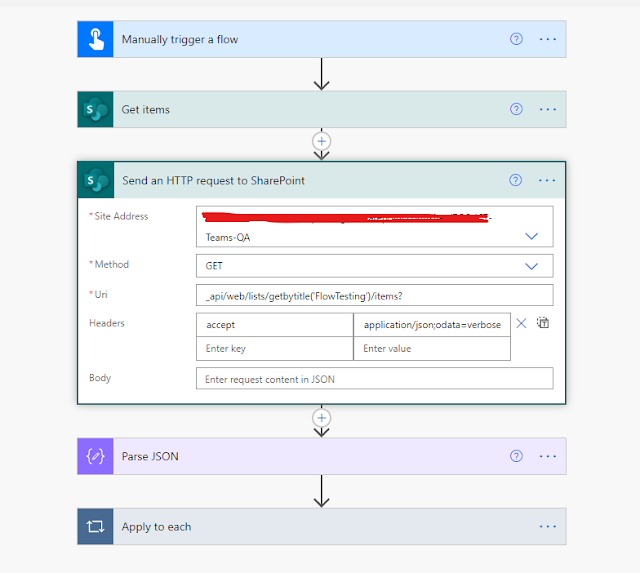
 CRUD operation using Send request to SharePoint Action Send request to SharePoint Action is an important Action in Power Automate. Perfect use case for this Action will be when Out of Box actions are failing to do the job, like when your flow is failing to read the JSON that you have passed to it. This action can be used to do all the CRUD operations on SharePoint lists using the below methods. GET POST PATCH DELETE However, the best part I like about it is that you don't even need to refresh the SharePoint Pages to see the end result. Lets dig into this. We have a simple Flow testing list created in SharePoint. It has a Title column, a choice column and a People picker with single values column. GET Method. For all the flows that I showcase here I will only trigger them using Manual trigger. But that is no way a dependency and in actual practice you can trigger your flows based on any conditions and even from Power Apps and they will work like a charm. Site Address : Select your...

Nesting Level limit in Power Automate.

Image
         In one of my Projects in which I was automating a SharePoint 2013 Stage workflow, I ran into a very interesting scenario, Flow starts to throw an exception that you have actually reached a limit for your nested structure and you can't create actions beyond it. This is really weird as in 2013 I never experienced this, but that may be because in 2013 we had a stage structure. To replicate the stage workflow we use a stage template. I have written another blog on how this is done. Please check it here for more info. So in our case we have 2 switch statements one for Phase and another for Status. Each having multiple options. But when you come down to these detail actions inside these status you sometime further need condition on a field. Like in my case i had my first level where in I check if the Threshold (Internal column) has value 199, then  But my third level comes in when i compare if my threshold has value 200 Each of yes and No state...